
Panels & types
A 10-minute walkthrough to get your first ticket flow live.
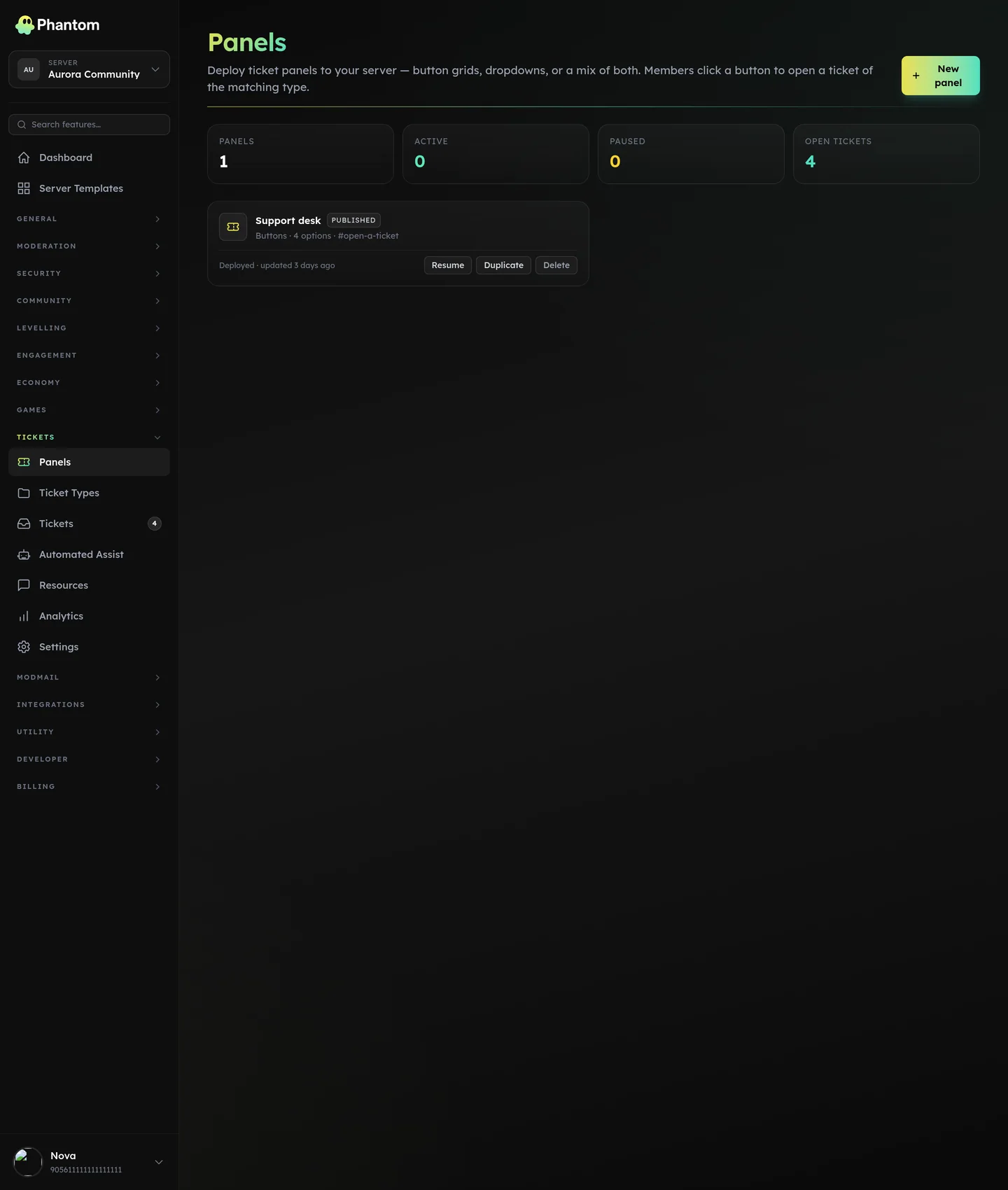 Tickets → Panels.
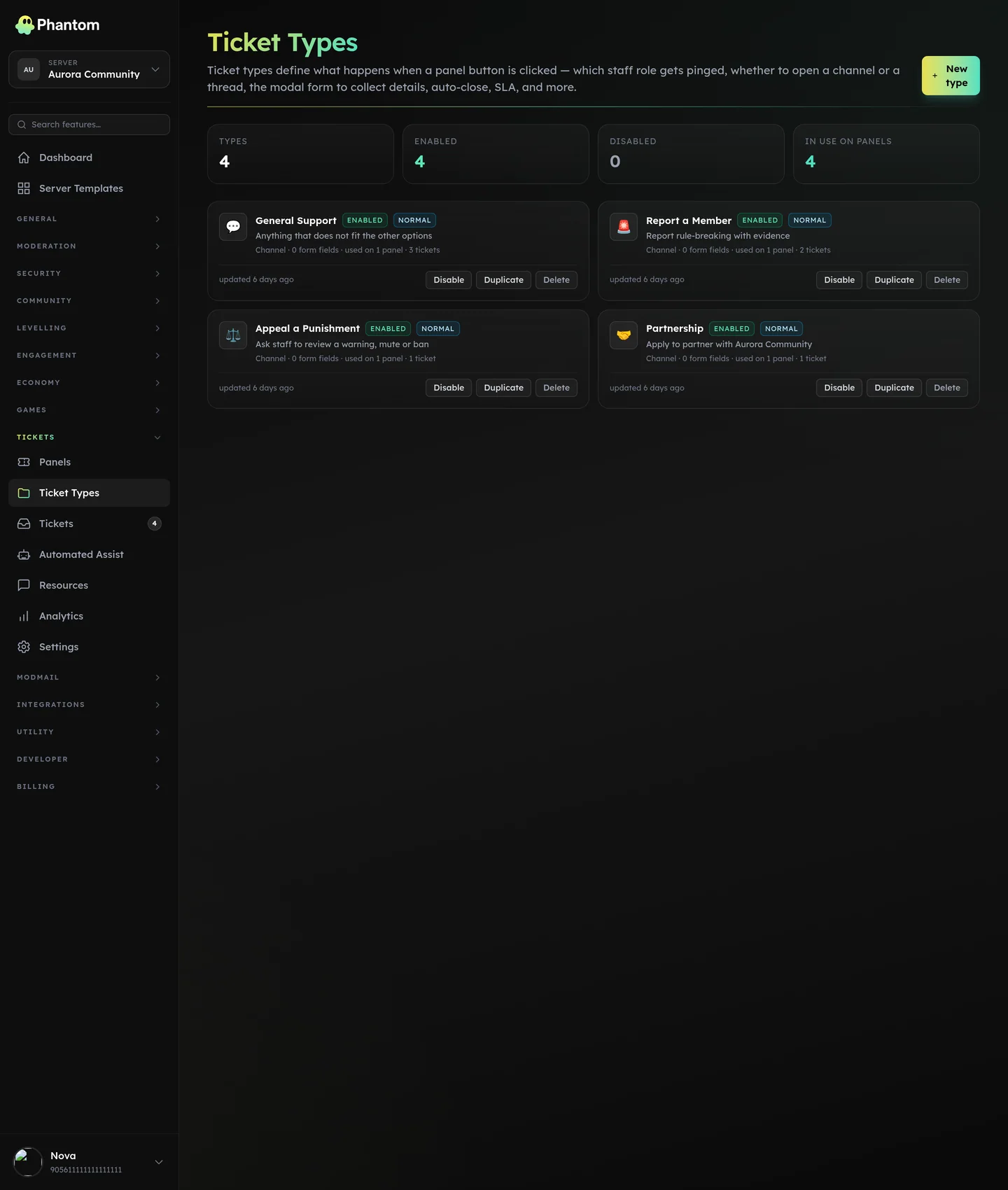 Tickets → Types, where each option on a panel is configured.
1. Create a ticket type
Tickets → Types → Add type.
Fill in:
- Name — what shows on the button + ticket title (e.g. "General Support").
- Description — surfaced in the panel embed; explains what this type is for.
- Channel mode —
channelorthread. - Channel name format — template for the auto-created channel. Default:
ticket-{number}-{username}. Placeholders:{number},{username},{type}. - Welcome message — posted in the ticket on creation. Supports markdown.
- Staff role IDs — who can act as staff on this ticket type. (See permissions.)
- Welcome ping — toggle + role picker. When on, the welcome embed pings either every staff role or the subset you pick in Roles to ping (capped at 20 roles). The same set is re-applied when a ticket is moved into this type. Leaving the picker empty falls back to pinging every staff role.
- Opener can close — when on (default), the ticket's opener can self-close. When off, only staff (per-type roles, Discord Manage Channels, or
tickets.edit) may close. Enforced on both the close button and/ptickets close. - Priority default —
low/normal/high/urgent. - Open limit per user — max simultaneous open tickets per member of this type.
0= unlimited. - Form fields — up to 5 input fields that appear in a modal when the user clicks the button. Each field has label, type (short/paragraph), required, max length.
- Color — accent for the ticket embed.
Save.
2. Create a panel
Tickets → Panels → Add panel.
Fill in:
- Title — embed title.
- Description — embed body.
- Channel — where the panel will be posted.
- Buttons — up to 25 per panel. Each button → one ticket type. Configure label, emoji, style (primary/secondary/success/danger), display position.
Click Save. Then click Deploy to post the panel embed in the chosen channel.
3. Test it
In Discord, click the panel button. The modal pops up (if your type has form fields) — fill it in and submit. Phantom creates the ticket channel/thread, posts the welcome message, sets you as opener.
Test as a staff member too:
- Use
/ptickets claimto claim. - Add a note with
/ptickets note. - Close with
/ptickets close.
Common patterns
Three-type setup
- General Support — channel mode, low priority, basic form (just a description field).
- Billing — channel mode, high priority, billing-staff role only, form fields: order ID, issue description.
- Report a User — thread mode, urgent priority, form fields: offending user, evidence URL, description.
One panel per channel
Put each panel in its own channel (#general-support, #billing-support) so members don't see options that don't apply.
Multiple panels in one channel
Useful for a #support channel that has a "Pick your issue" panel with buttons for each type.
Auto-close
Configured globally in Tickets → Settings:
- Inactivity threshold — close after N days idle. Default 3.
- Warning period — DM the opener N hours before close. Default 24.
- Max age threshold — hard close after N days regardless of activity. Default 30.
Per-ticket pin (/ptickets pin) exempts that one ticket from auto-close.
Transcripts
Generated on close. Hosted by Phantom for 90 days and accessible via a private link shared with staff and the opener. Includes:
- Full message history (text, embed metadata, attachment links)
- Author + timestamp per message
- System events (claim, assign, close, etc.)
- Form answers from the opening modal
Staff can re-trigger generation with /ptickets transcript.
Member feedback
Optional per-type: on close, the opener can rate the ticket 1–5 stars + leave a comment. Surfaces on the Analytics page so you can see which staff / which types get the best feedback.
Permissions
tickets.view— see panels + types in the dashboardtickets.edit— create / edit / delete