
First-time setup
A 10-minute path that gets your server protected, your staff onboarded, and the most-used modules turned on. Follow it in order, then come back to pick up the specialised modules later.
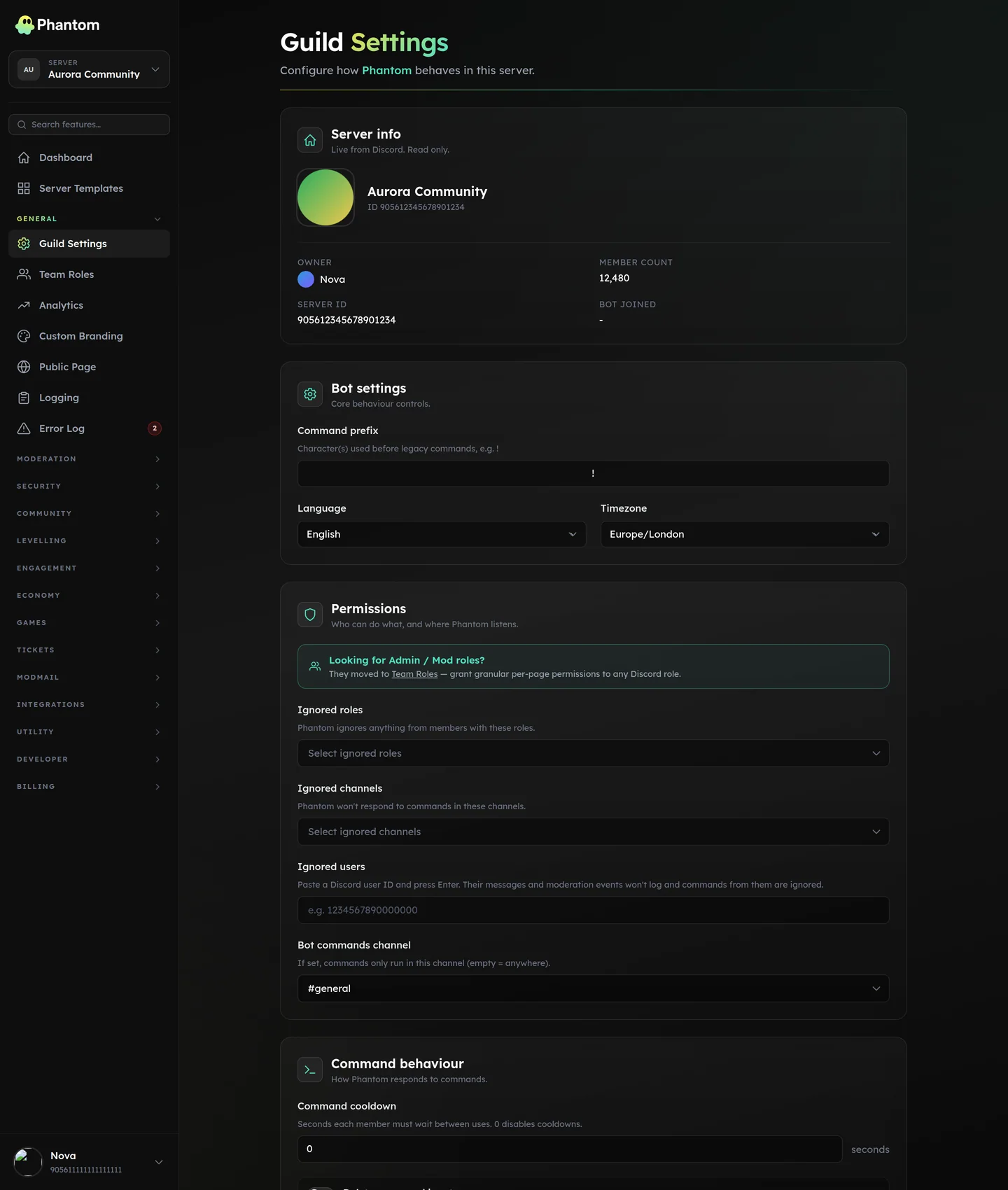 General → Guild Settings, the first stop in a new install.
1. Configure Guild Settings
Open General → Guild Settings. The defaults are sensible, but you usually want to set:
- Timezone — drives every "due at X" / "expires at X" display across the dashboard, plus scheduled-message and trivia post times.
- Language — UI strings on the dashboard. Bot embeds use the user's Discord-side locale where possible.
- Ignored channels — channels Phantom should pretend don't exist (NSFW corners, off-topic-bot channels, etc.). Commands won't fire there and automod will skip them.
- Ignored users — paste a Discord user ID per row. Common use: a music bot you don't want logged in moderation events.
Admin and mod roles moved
You used to pick Admin roles and Mod roles here. They've moved to the new Team Roles page, which lets you assign a custom subset of permissions to any Discord role — not just "admin" or "mod".
Save the page (auto-saves on change for most fields).
2. Set up Team Roles
Open General → Team Roles. The page lets you take any existing Discord role in your server and grant it dashboard + bot permissions.
A typical starting setup:
- Administrator team role bound to your
AdminDiscord role with All on preset. - Senior Mod team role bound to your
Senior ModeratorDiscord role with the Mod preset (moderation + tickets + automod-view + security-view + error log). - Trial Mod team role bound to your
Trial ModeratorDiscord role withmoderation.view+moderation.warnonly — they can see cases and warn members but cannot kick, ban, or change settings.
Full walkthrough on the Team Roles page.
3. Pick a logging channel
Open General → Logging, pick a channel (e.g. #mod-log), and toggle the event types you care about. At minimum: Moderation actions + Member joins/leaves + Role changes.
Phantom uses this channel for the audit trail of every action it takes. Distinct from Security → Audit Log, which is for security-specific events (raids, scam hits, etc.).
4. Turn on automod
Open Moderation → Automod. Click into each category you care about:
- Spam is the highest-impact starting rule. Add one with default thresholds (5 messages in 10 seconds → 30-second timeout) and you'll catch most casual spammers.
- Link with Block Discord invites ticked stops the most common drive-by self-promo.
- Mention flood with
max user mentions = 5blocks ping-spam raids.
Every rule starts disabled. After adding it, flip the toggle to enabled. You can test rules without enforcing by setting enforcement to "log only" first.
5. Set up verification (if your server is at risk of raids)
Open Security → Verification. Pick a mode (Button is the lowest-friction; Captcha is highest-security), the channel where the verify panel posts, and the role to grant on success. Click Deploy to post the embed.
6. Configure welcomes
Open Community → Welcome & Leave. Pick a channel, customise the message, optionally turn on the image card with one of the built-in presets (Aurora, Sunset, Neon Grid, etc.).
Use {user.mention} for the welcomed user's @mention and {server} for the server name.
7. Pick the modules you actually want
Browse the sidebar and toggle on the ones that fit your server:
- Tickets if you need a support queue
- Levelling + Economy if you want engagement
- Giveaways for promotions
- Reaction Roles for self-assignable roles
- Server Templates for backup / replication
8. (Optional) Auto-Assist + Custom Branding
These two are paid features: Custom Branding is part of Phantom Pro, and Auto-Assist runs on prepaid AI credits. Enable them on their respective pages — see Pricing & Phantom Pro for how each is billed.
You're done
The most common first-week loop is: enable a module → use it for a few days → tune the settings from the Error Log if anything's misbehaving. The Error Log surfaces user-actionable problems with the exact dashboard page to fix them.
Pick whichever specialised module you need next:
- Moderation cases & warnings
- Anti-Raid
- Tickets overview
- Levelling overview
- Cross-Server Sync — if you run multiple sister servers