
Dashboard tour
The dashboard lives at phantombot.gg/dashboard. Sign in with Discord — Phantom uses your Discord account to figure out which servers you can manage.
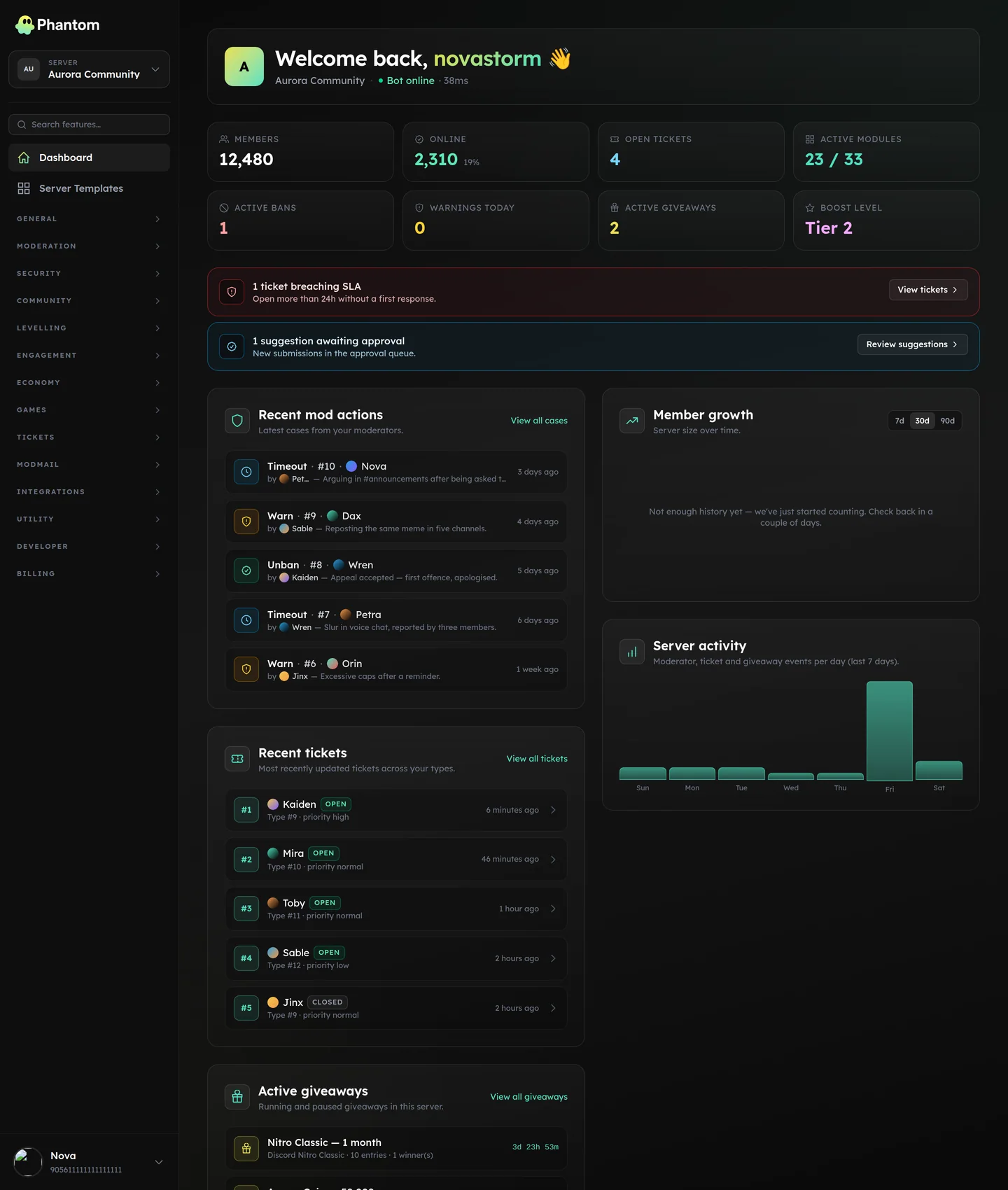 The dashboard home for a server, at Dashboard → Home.
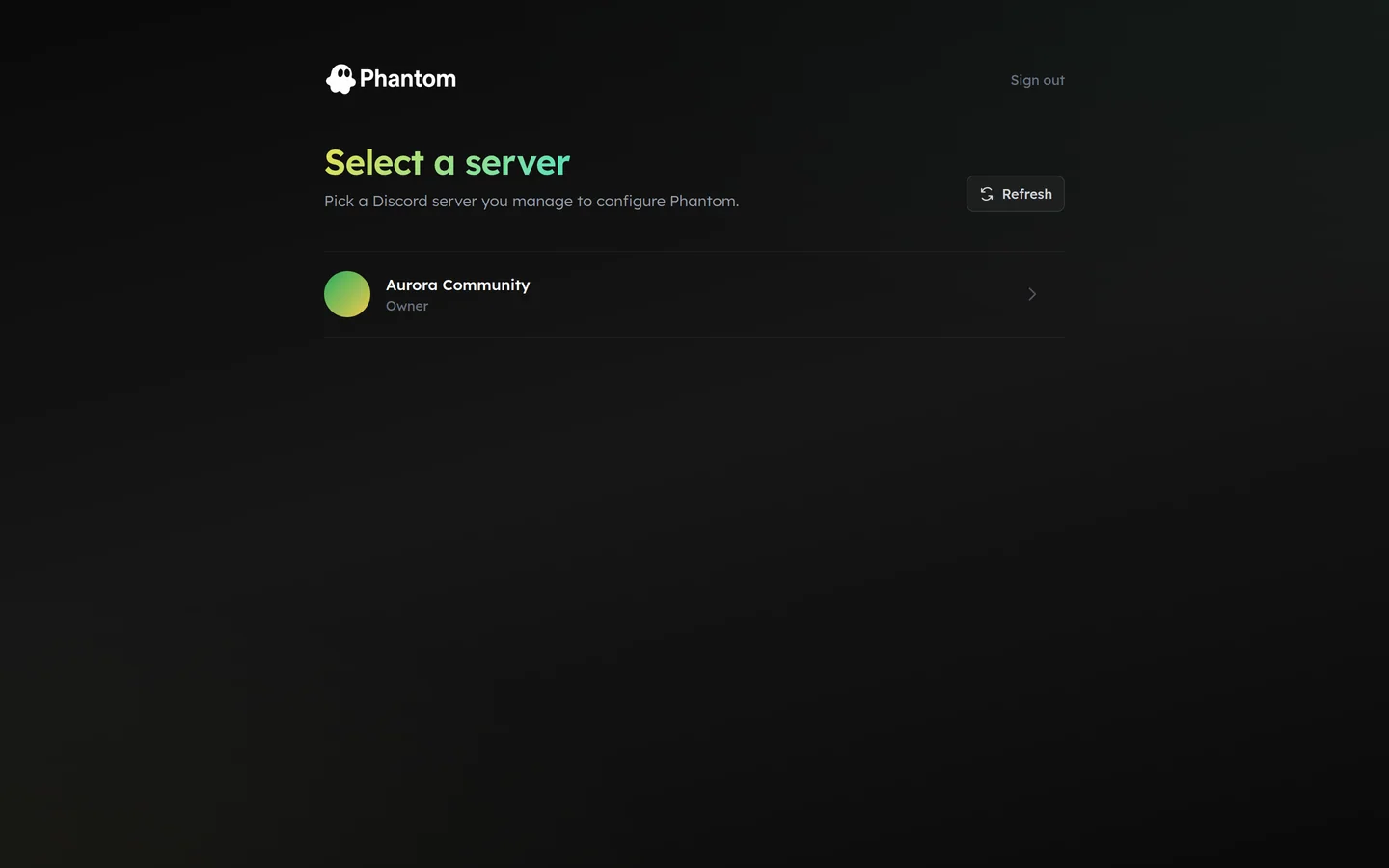 The server picker you land on after signing in with Discord.
What you can see
Three signals decide whether a server shows up in your picker:
- You have Discord Administrator on it (or are the owner) → full dashboard access; every page is visible.
- You have a Team Role on it that grants any dashboard permission → access to only the pages you're permitted.
- Phantom (or one of your custom bots) is in the server.
If a server has Phantom installed but you don't fit (1) or (2), it won't appear. Ask the owner to add you on the Team Roles page.
The sidebar
The left sidebar groups every Phantom feature by area. The grouping mirrors how the bot itself is organised:
- Dashboard — home, with quick stats (members, recent moderation activity, recent error log, server-template snapshot button).
- Server Templates — promoted to the top because it's typically the first thing a fresh server admin uses (snapshot the existing layout before tweaking things).
- General — Guild Settings, Team Roles, Custom Branding, Logging, Error Log.
- Moderation — Cases & Warnings, User Lookup, Cross-Server Sync, Automod.
- Security — 13 individual pages for Scanner, Lockdown, Anti-Raid, Anti-Nuke, Anti-Scam, Verification, Quarantine, Server Backup, Blacklist, Honeypot, Perm Watch, Audit Log, Firewall.
- Community — Welcome & Leave, Reaction Roles, Join Roles, Role Persistence, Temp Roles, Temp Channels, Channel Stats, Invite Tracking, Scheduled Messages.
- Levelling — XP Settings, Level Roles, Leaderboard, XP Blacklist.
- Engagement — Giveaways, Polls, Suggestions, Reviews, Trivia, Counting.
- Economy — Settings, Earning, Leaderboard, Analytics, Ledger.
- Casino — single page for game tunables and analytics.
- Tickets — Panels, Types, Tickets, Resources, Analytics, Settings.
- Streamer Alerts — Twitch, YouTube, Kick, TikTok.
- Integrations — Partnerships, FiveM.
- Builders — Custom Commands, Embed Builder, Interactive Panels.
Pages your Team Role doesn't permit are hidden completely — you won't see them in the sidebar, and typing the URL into the address bar returns a 403.
The top bar
- Server picker — drop-down listing every Phantom-installed server you can manage. Changing servers reloads the dashboard with that server's data.
- Refresh dashboard — forces a fresh pull of your server list, blacklists, and team-role permissions. Useful right after the bot has been added somewhere new and you don't see it yet.
- Account — your Phantom user profile. Tour state, display name override, two-factor auth, billing.
Sidebar badges
Some sidebar items carry a red badge with a count:
- Error Log — number of unresolved Phantom errors on this server. Empty when everything is fine.
- Tickets — number of open / claimed tickets currently in flight.
Badges refresh roughly every 30 seconds and clear as soon as you action the underlying items.
Form behaviour
Most pages auto-save on change after a ~450ms debounce — change a toggle and the toast in the top of the screen confirms within half a second. Forms that affect destructive actions (delete network, kick member from list) require a confirm dialog before they fire.
Per-page banners
A few module pages surface contextual banners:
- Automod / Security pages — when you're on a subscriber of a Cross-Server-Sync network, an emerald banner says "synced from your network". Click Override on individual rules to take local ownership.
- Cases page — if your Team Role can view but not edit, action buttons appear disabled with a tooltip.
- First-time pages — modules that have never been enabled show an empty-state with a one-click "Enable" button and link to the relevant docs.
Mobile
The dashboard works on mobile — the sidebar collapses to a hamburger, and tables scroll horizontally. Heavy edit pages (embed builder, panels editor) are best on desktop; everything else is touch-friendly.
Keyboard shortcuts
g h— go to dashboard homeg s— go to server pickerg a— go to Account/— focus search
(Available on most pages; modal-bound pages may swallow the shortcut.)