
Reaction Roles
Members react to a message with an emoji and Phantom grants them a role.
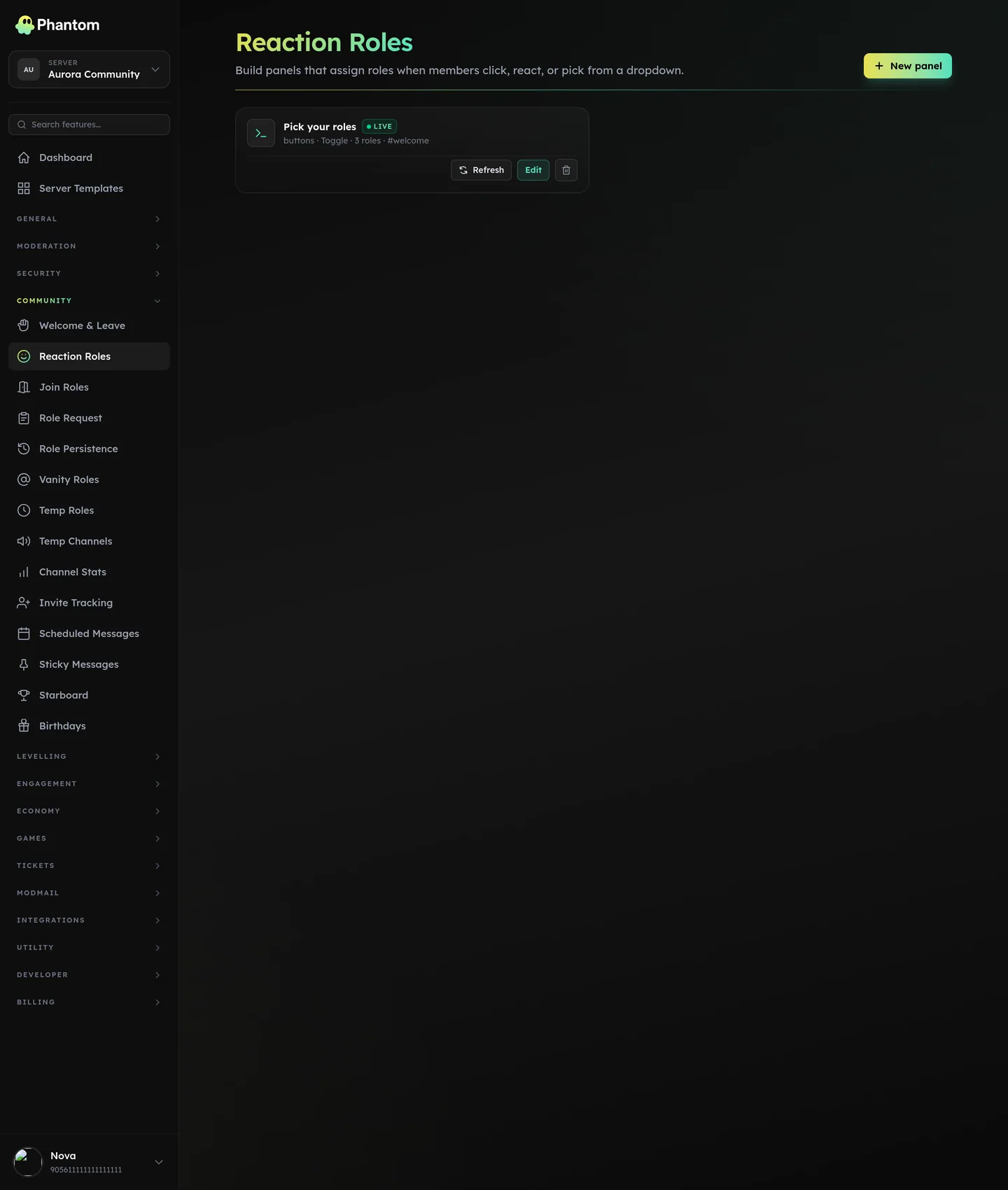 Community → Reaction Roles.
Where it lives
Dashboard: Community → Reaction Roles. Each panel is a (message_id, emoji-to-role mapping, mode) record.
Modes
- Add — reaction grants the role; un-reacting removes it.
- Remove — reacting strips the role.
- Toggle — first reaction grants, second strips, third grants, etc.
Each panel is one mode.
Setting up
- Post a message in your channel (manually or via Embed Builder).
- Copy the message ID (Developer Mode → right-click → Copy ID).
- On the Reaction Roles dashboard, click Add panel, paste the ID.
- Add emoji ↔ role pairs.
- Save. Phantom auto-applies the reactions to the message so members can click them.
Tips
- Use one panel for self-assignable roles (pronouns, region, notification opt-ins).
- Use separate panels per group so you can change modes (add vs toggle) per group.
- Don't use this for security-related roles — reaction-roles are easily granted by bots; pair with Verification first.
- Make sure Phantom's role is above the granted roles in the hierarchy.
Limits
Free plan: 3 reaction role panels per server. Phantom Pro makes it unlimited. Panels above the cap keep working if a server drops to Free — you just can't add another.
System limits, on every plan:
- Reactions per panel: limited by Discord (20 unique reactions per message).
- Panels per guild: no hard cap beyond the plan cap.
Permissions
community.view— see panelscommunity.edit— add / edit / delete