
Team Roles & permissions
Team Roles is Phantom's permission system. It lets you say things like "Trial Mods can warn but not ban", or "the Tickets Lead can manage tickets but stay out of automod". You bind a Discord role to a set of Phantom permissions; everyone holding that Discord role inherits them.
You don't need to invite anyone separately
Anyone already in your Discord server with a Phantom-mapped role gets dashboard access automatically. They sign in with Discord at phantombot.gg/dashboard and only see what their permissions allow.
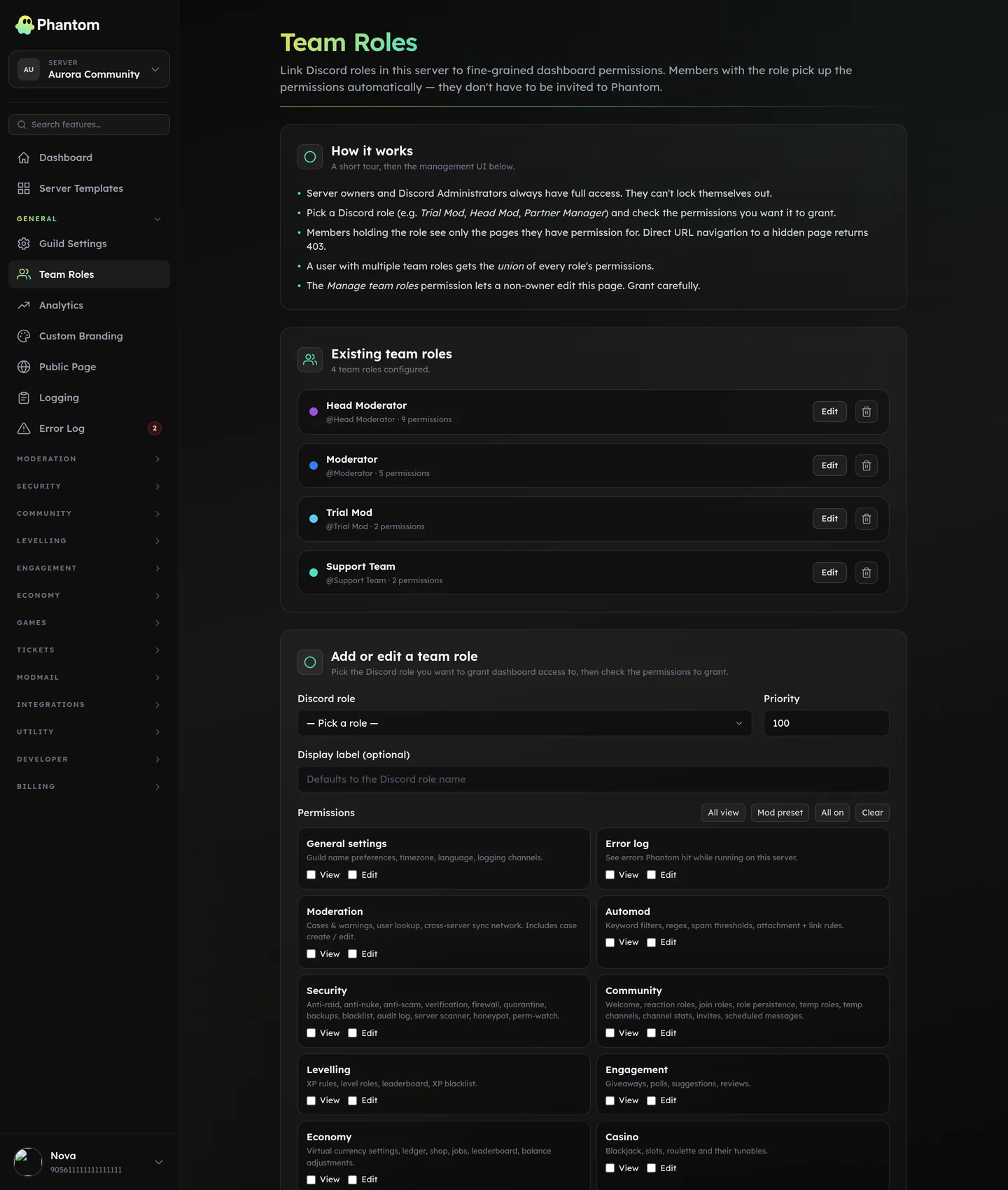 General → Team Roles, where each Discord role is mapped to Phantom permissions.
How it works
Three sources of access, in order of precedence:
- Server owner and Discord Administrator → always full access. Cannot lock themselves out.
- Members with a Discord role mapped to a Team Role → permission set is the union of every matched Team Role's permissions.
- Nobody else.
Pages you don't have permission to view are hidden completely from your sidebar. Typing the URL directly returns a clean 403. There is no in-between "you can see the page but it's read-only" — it's full-on hidden until you have the perm.
Permission groups
Each module on the dashboard is a "group" with two permissions: <group>.view and <group>.edit. The 20 groups:
| Group | Covers |
|---|---|
guild | Guild settings, custom branding, logging |
error_log | The Error Log page |
moderation | Cases & warnings, user lookup, cross-server sync |
automod | Automod rules + categories |
security | All 13 security pages |
community | Welcome, reaction roles, join roles, role persistence, temp roles, temp channels, channel stats, invites, scheduled messages |
levelling | XP, level roles, leaderboard, XP blacklist |
engagement | Giveaways, polls, suggestions, reviews |
economy | Wallet settings, ledger, shop, jobs, leaderboard |
casino | Blackjack, slots, roulette tunables |
tickets | Panels, types, auto-assist knowledge bases |
panels | Interactive panels builder |
partnerships | Partner approval queue |
fivem | FiveM integration |
custom_commands | Server-defined slash commands |
embeds | Embed builder |
trivia | Trivia rounds + schedule |
counting | Counting channels |
custom_branding | White-label bot tokens |
server_templates | Snapshot / apply layouts |
.edit implies .view automatically — if you grant moderation.edit you don't also need to tick moderation.view.
Per-action moderation perms
Moderation gets extra granularity beyond just .view / .edit. The six fine-grained perms:
moderation.kickmoderation.ban(covers/pmod banand/pmod tempban)moderation.unbanmoderation.timeout(covers timeout + untimeout)moderation.warnmoderation.case_edit(edit case notes, pin, delete cases on the dashboard)
moderation.edit is a meta-grant: ticking it grants every fine-grained perm above plus dashboard view.
This is what lets you create a Trial Mod role with only moderation.warn and moderation.case_edit — they can warn members, see and annotate cases, but the kick / ban buttons return 403.
The special "manage team roles" perm
team_roles.manage lets a non-owner edit Team Roles themselves — including granting team_roles.manage to others. Hand it out carefully.
Adding a Team Role
- Open General → Team Roles.
- Pick a Discord role from the dropdown. (Bot-managed roles, e.g. integration roles or @everyone, are disabled — you can't pick them.)
- Optionally rename it (purely for display in this page; doesn't change the Discord role).
- Tick the permissions to grant. Use the presets for common configurations:
- All view — every group's
.view. Read-only auditor role. - Mod preset — moderation + tickets edit, automod + security view, error log view. Conventional moderator role.
- All on — every group, both
.viewand.edit, plus specials. Use sparingly. - Clear — uncheck everything.
- All view — every group's
- Save.
The role takes effect immediately. The members holding it can refresh their dashboard and the new pages appear.
Editing a Team Role
Click Edit on any row to load it into the form below. Change what you want, click Save changes. The change shows up in the dashboard for affected members on their next page load (and immediately for the admin who made the change).
Deleting a Team Role
Click the trash icon next to a row. The Discord role itself stays untouched — only the Team-Role binding is removed. Members holding that Discord role lose the granted permissions on their next page load.
Multiple Team Roles per user
If a user holds multiple Discord roles that are each mapped to a Team Role, they get the union of every Team Role's permissions. There's no "deny" — the system is additive only.
Cross-Server Sync of Team Roles
If you run a network of servers, you can sync Team Role definitions across them (see Cross-Server Sync). Synced roles arrive without a Discord-role binding; each subscriber's owner picks a local role to attach the permission set to.
Audit log
Every Team Role create / edit / delete / bind / override is logged with before+after snapshots. Scroll to the Recent changes section at the bottom of the Team Roles page to see the last 50 entries with diff bubbles (e.g. "5 → 7 perms") and per-action coloured pills.
What about the old Admin / Mod role pickers?
Phantom's older versions had a simple Admin roles and Mod roles picker on Guild Settings. They're gone — Team Roles is the source of truth now.
When the new system rolled out, every role you'd listed under Admin roles became an "Administrator" Team Role with full permissions. Every role under Mod roles became a "Moderator" Team Role with the typical mod permission set. No existing access was lost.
You can rename or repurpose those auto-created Team Roles however you like.